Echo: Turning Reading into Fuel for Your Writing!
Note: Echo has English interface. You can change the language in “Preferences”
Why doesn’t reading more actually help my writing?
A while back, while reading Huang Li-chun’s essays, two thoughts kept surfacing in my mind:
- Two perfectly ordinary words, put side by side, can turn out this extraordinary!
- An old idea can be expressed in a way this fresh and interesting!
And it isn’t just Huang Li-chun. Every writer I admire has that same ability.
So how do you get to be like them? Plenty of people say, “read more and it’ll help your writing,” but that hasn’t been true for me. Either I read something and forget it, or I copy it down and then never quite manage to use it. In high school, to prep for the college entrance exam, I used to copy famous lines into a vocabulary notebook, but at best that let me borrow other people’s words to back up my own points. Once I was older, paper notebooks felt hard to search, so I started dumping sentences into digital notes instead — Evernote, Notion, Apple Notes, I’ve used them all. I copied down plenty, and my writing didn’t improve much.
So how do you actually turn someone else’s way with words into your own? After thinking it through carefully, here’s what I found:
Copying sentences down is only the first step. If you want to write good sentences, you have to take the next one:
analyze what sentence patterns or word choices in that good sentence you’d never have come up with yourself, then use them to practice writing your own. That’s how you internalize someone else’s sentence logic and craft with words.
So I decided to use Claude Code to build an app — an environment designed to help me internalize things more efficiently, and to let everything I collect and practice become a source of inspiration for my future writing. Please welcome Echo to the stage!
Echo
Put simply, Echo is an app made for people like me, who don’t know how to turn reading into writing. You could call it a training ground for your writing.
How does it actually work?
Step 1: Write down the good sentences you come across
Step 2: Add a context tag + practice writing the sentence
In what kind of situation, in the future, might I write a sentence with a pattern or a word like this?
Then, in the practice field below, use the sentence pattern or the wording from the sentence you collected to write your own sentence that fits that context.
Here’s an example. In Natsume Sōseki’s novel I Am a Cat, there’s a passage where the cat describes his owner:
And all the more so with a man like my master, who hasn’t a shred of sympathy in him — how would he ever grasp that “understanding one another is the first principle of love”? Like a low-grade oyster, he stays clamped inside his study, never opening his mouth to the outside world, and yet puts on the air of the one person who sees everything clearly. It really is rather comical.
I love the author’s use of simile, and I think shellfish make a great one, so I wanted to turn it into fuel of my own. I thought: maybe someday I’ll want to use a clam to describe a shut-in. So I added a context called “Shut-in,” and underneath it I wrote:
He clings inside his own room like a clam, and only when Xiaoming turns up can he spit out all the sand, all the grit, all the pain of never being able to say in front of his family.
If you genuinely can’t think of anything, the little “i” button below offers some hints to help spark ideas.
This process keeps you from simply hoarding sentences. It turns input into output, and teaches you to write in your own voice.
Random practice

Just click “Random Practice” in the sidebar and the system will pick a quote at random. The logic behind it: sentences you haven’t practiced yet come up first, and ones you’ve already practiced come up later. Only one card appears at a time, which both lightens the mental load and lets you focus on the one piece of practice in front of you.
When it’s time to actually write something
When you sit down to write a real piece, Echo becomes a fantastic treasury of inspiration. The more sentences you collect and practice in Echo, the more writing inspiration you accumulate for yourself:
- In the brainstorming stage, go to the “All Contexts” page and click a few completely unrelated tags to look over the sentences you’ve built up, and let them spark ideas.

- When you need to quote something but can’t recall the full sentence, type whatever word or character you do remember into the search bar in the upper right and you’ll find the original. And it isn’t just the quotes — sources, scenerios, and your own practice sentences are all searchable too.

Why use Echo? Couldn’t I just use another note-taking app?
Note-taking apps can absolutely store sentences and hold your practice. But a note-taking app is a personal productivity and knowledge-base tool. If you also want it to keep you on track with writing practice, you have to hand-build those features yourself. And once you have, your practice ends up mixed in with all your other projects. When you open the note app, writing practice isn’t the only thing on your mind, and over time it’s easy for that writing project to get set aside and forgotten.
The nice thing about Echo is that it’s an app designed specifically for improving your writing. Random Practice draws the cards for you, and there are little hints to help you think while you write. If you want to practice, you just open Echo and hit Random Practice. No effort required.
Who is Echo for?
- Middle and high school students preparing for entrance exams
- Anyone who wants a dedicated space for collecting sentences they love
- Anyone like me, who reads plenty and still feels their writing hasn’t improved
My experience using it
After using Echo for a while, I’ve noticed that when I come across a good sentence, I’m quicker to start thinking about how to take its essence and write my own version. On top of that, when I’m practicing inside Echo, ideas tend to pop up one after another — and best of all, I end up writing sentences I never would have come up with otherwise.
How to download Echo
If you’d like to give it a try, head to GitHub and download the latest version for your computer. Right now it’s a desktop app. Download link: click here
You can use this image to figure out which one to get: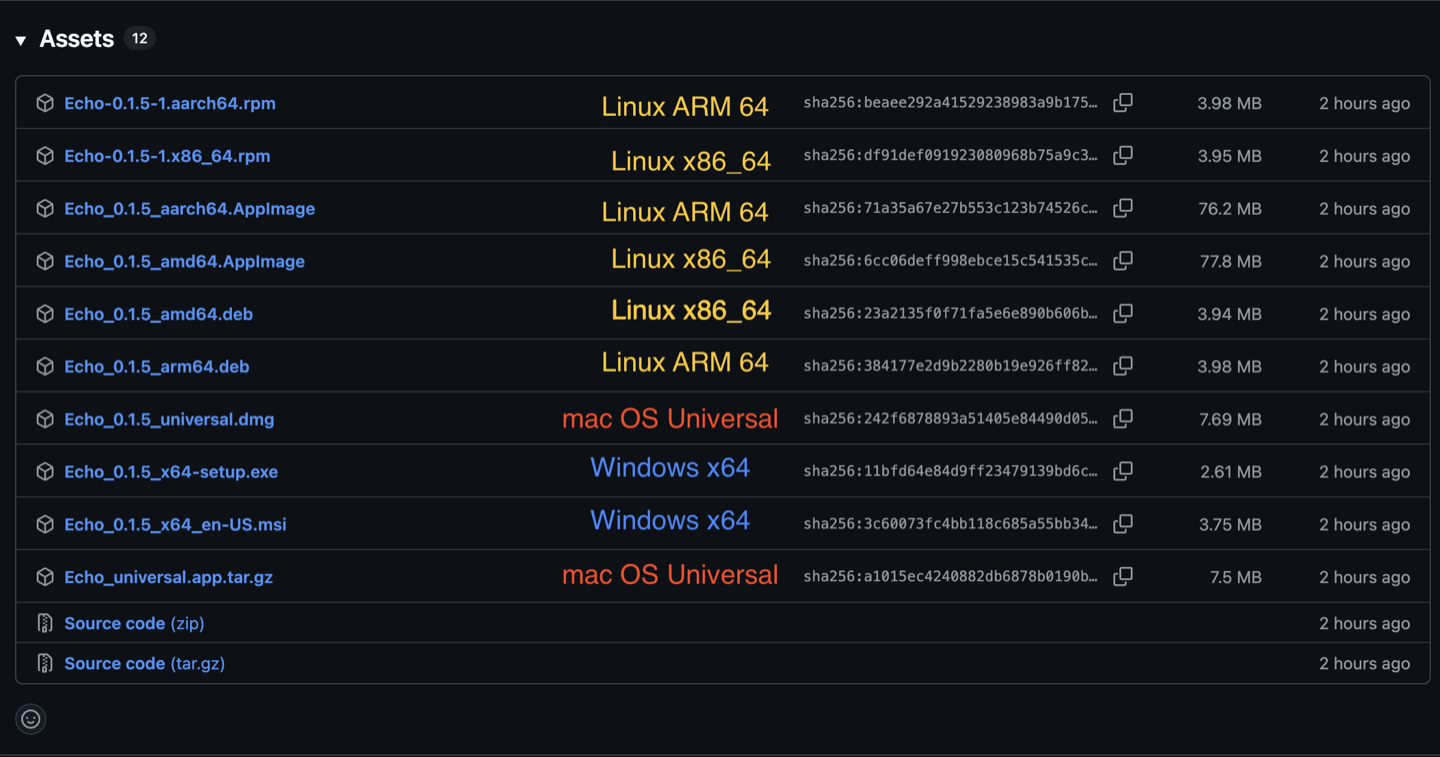
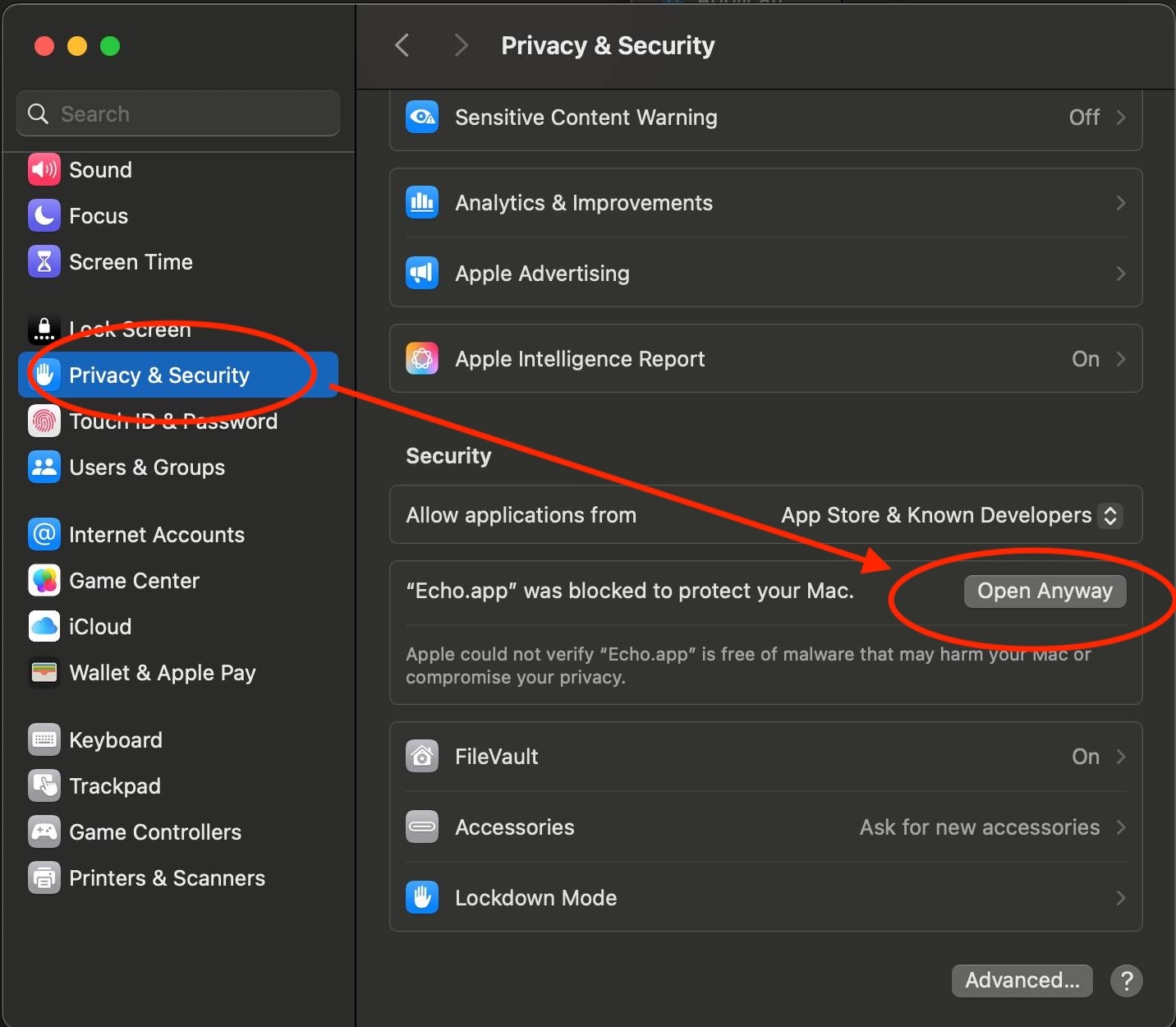
By the way, since I didn’t pay Apple (99 US dollars a year is so expensive!), macOS users will get a Gatekeeper notification after downloading Echo. Just click “Done” (please don’t move it to the Trash), then go to “Settings” → “Privacy & Security” → “Open Anyway” and you’re all set!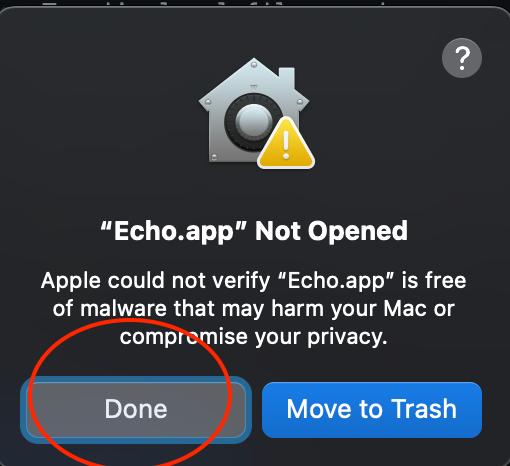
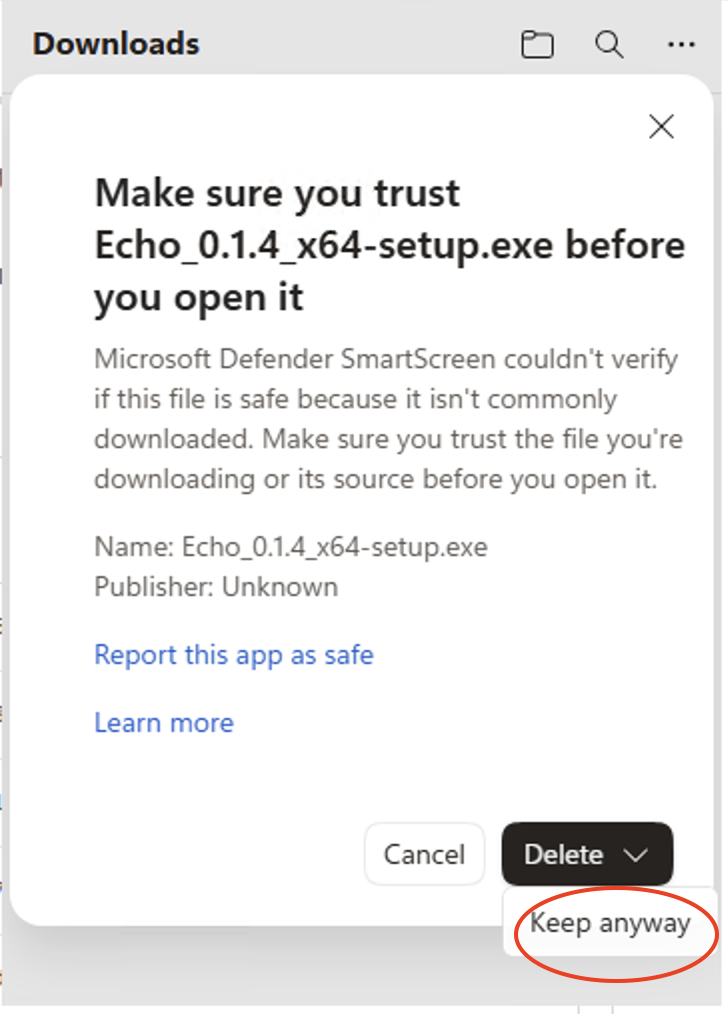
For Windows users, click “Keep” → “Keep anyway” and you’re good to go!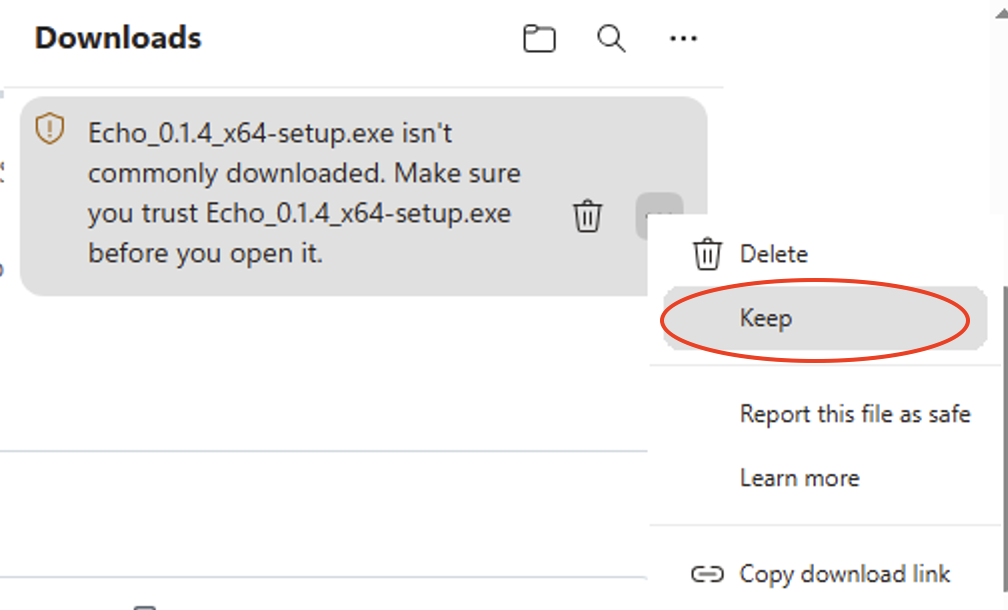
Let’s go together from “agreeing with everything everyone else says” to “being able to write great sentences of our own”!
Do you also feel like reading rarely turns into fuel for your writing? Feel free to email me and let’s talk about it. And if you’d like to share your experience with Echo or report a bug, email is welcome too: mail@alicehsu.blog
NB: This article was first published in Chinese on 09/04/26. It was later translated with assistance from AI tools, edited by me, and published in English on 09/09/26.